
Meta Ads CRM seamlessly captures and manages leads generated from your Facebook and Instagram ads in real time. It integrates directly with Meta Instant Forms, Google Sheets, and secure Facebook App tokens to automate lead collection, synchronization, and organization. With flexible CRM connectivity, easy lead fetching, and export options, businesses can review, follow up, and download leads effortlessly. Ideal for marketers, agencies, and sales teams, Meta Ads CRM ensures accurate, reliable, and structured lead data to streamline campaigns and maximize conversion performance
Try For Free
30+
Scraping Tools
10+
CRM Tools
10M+
Emails
15M+
Contact Number

Log in to your Facebook Business account. From the sidebar, click on ‘All Tools’ and search for ‘Instant Forms’ to access all your created lead forms.
Log in to your Facebook Business account. From the sidebar, click on ‘All Tools’ and search for ‘Instant Forms’ to access all your created lead forms.
Try NowInside Instant Forms, click on ‘Lead Integration’ and choose ‘Google Sheets’. Create a new integration by selecting an existing Google Sheet or creating a new one.
Try NowInside Instant Forms, click on ‘Lead Integration’ and choose ‘Google Sheets’. Create a new integration by selecting an existing Google Sheet or creating a new one.
Open Google Drive and create a new Google Sheet. Click ‘Share’ and change access to ‘Anyone with the link’. Set the permission to ‘Viewer’ and copy the sheet URL.
Open Google Drive and create a new Google Sheet. Click ‘Share’ and change access to ‘Anyone with the link’. Set the permission to ‘Viewer’ and copy the sheet URL.
Try NowPaste the Google Sheet URL into Facebook’s integration field and remove extra URL parameters. Select the sheet, choose your lead form, verify form details, and connect the dataset.
Try NowPaste the Google Sheet URL into Facebook’s integration field and remove extra URL parameters. Select the sheet, choose your lead form, verify form details, and connect the dataset.
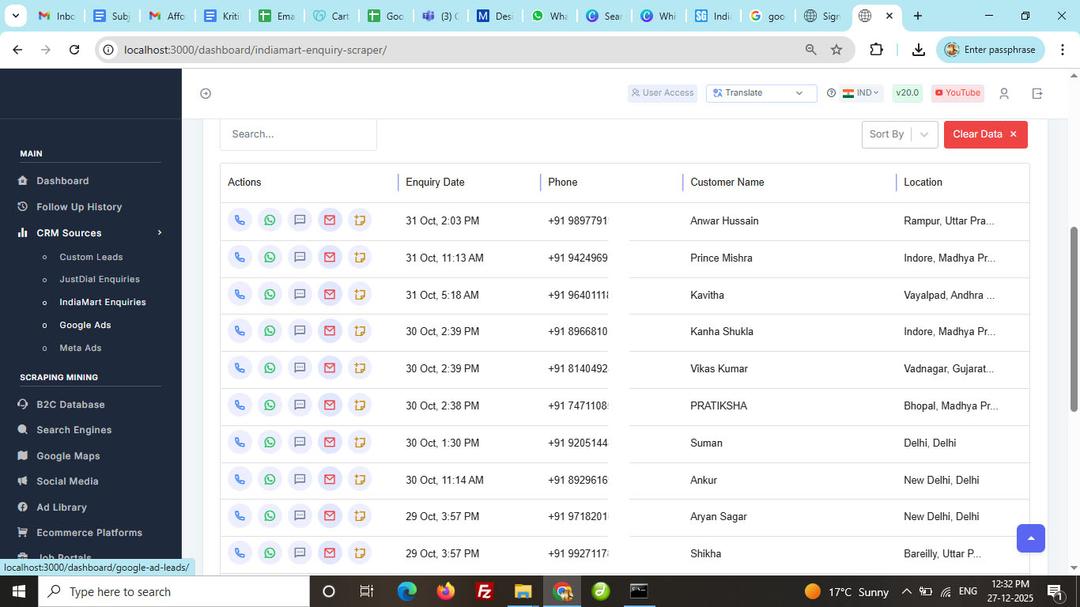
Paste the connected Google Sheet URL into the Meta Ads CRM tool, enter the sheet name, and click ‘Fetch Leads’. Your leads will be loaded into the dashboard automatically.
Paste the connected Google Sheet URL into the Meta Ads CRM tool, enter the sheet name, and click ‘Fetch Leads’. Your leads will be loaded into the dashboard automatically.
Try NowVisit the Facebook Developers portal, create a new app, select Ads and Content Management use cases, assign permissions, and generate a secure access token.
Try NowVisit the Facebook Developers portal, create a new app, select Ads and Content Management use cases, assign permissions, and generate a secure access token.
Paste the generated Facebook App token into the tool, select your Facebook page and ad set, then click ‘Fetch Leads’ to retrieve leads directly from Meta Ads.
Paste the generated Facebook App token into the tool, select your Facebook page and ad set, then click ‘Fetch Leads’ to retrieve leads directly from Meta Ads.
Try NowOnce leads are fetched, review them in the dashboard, set follow-ups, and easily download or export the records to Google Drive.
Try NowOnce leads are fetched, review them in the dashboard, set follow-ups, and easily download or export the records to Google Drive.
Effortlessly scrape data from Google Maps, websites, and directories with precision.
We ensure top-tier data privacy and protection for all your scraping projects.
Our global team is always ready to assist you with any query or concern.
Avoid IP blocks and CAPTCHAs with built-in advanced anti-scraping technology.
Start scraping instantly with a simple and intuitive user interface.
Access your tools and scraped data anywhere, anytime, with seamless cloud support (coming soon).