
Our Google Ads CRM is designed to capture and organize lead data directly from your Google Ads and website forms using secure Google Sheets integration. It streamlines lead collection for follow-ups, sales tracking, and campaign analysis. Whether you’re a business, agency, or marketer, this tool delivers accurate, real-time lead data to support faster conversions and smarter decision-making.
Try For Free
15M+
Total Records
20M+
Total Subscribers
35M+
Total Videos
43M+
Total Views

Click on ‘Edit App Script’ and copy the provided Google Apps Script code. Create a new Google Sheet, rename the sheet to ‘Leads’, then navigate to Extensions → Apps Script and replace the default function with the copied code.
Click on ‘Edit App Script’ and copy the provided Google Apps Script code. Create a new Google Sheet, rename the sheet to ‘Leads’, then navigate to Extensions → Apps Script and replace the default function with the copied code.
Try NowIn Apps Script, click on ‘Deploy’ → ‘New Deployment’. Select ‘Web App’, enter a description, set access to ‘Anyone’, and deploy. Authorize access by selecting your account and confirming permissions.
Try NowIn Apps Script, click on ‘Deploy’ → ‘New Deployment’. Select ‘Web App’, enter a description, set access to ‘Anyone’, and deploy. Authorize access by selecting your account and confirming permissions.
Once deployment is complete, securely save the generated Deployment ID and Web App URL. Copy the URL to use it for lead collection in the tool.
Once deployment is complete, securely save the generated Deployment ID and Web App URL. Copy the URL to use it for lead collection in the tool.
Try NowPaste the Web App URL into the tool’s input field and provide the Google Sheet URL where leads will be stored. Save the configuration to continue.
Try NowPaste the Web App URL into the tool’s input field and provide the Google Sheet URL where leads will be stored. Save the configuration to continue.
Copy the generated script tag from the tool and paste it into the head or body section of your website. This will display the lead capture form on your webpage.
Copy the generated script tag from the tool and paste it into the head or body section of your website. This will display the lead capture form on your webpage.
Try NowCopy the provided email address from the tool and share your Google Sheet with this email. Ensure the permission is set to ‘Viewer’ so the tool can read lead data.
Try NowCopy the provided email address from the tool and share your Google Sheet with this email. Ensure the permission is set to ‘Viewer’ so the tool can read lead data.
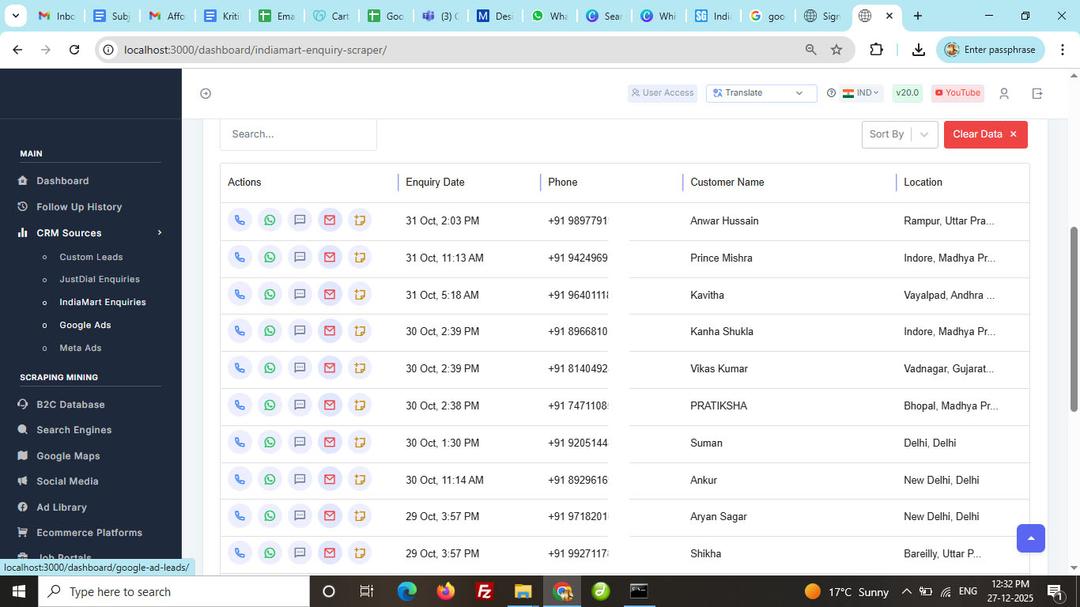
Paste the Google Sheet URL into the tool, enter the sheet name, and click ‘Fetch Leads’. Your Google Ad leads will appear in the dashboard, ready for follow-ups or export.
Paste the Google Sheet URL into the tool, enter the sheet name, and click ‘Fetch Leads’. Your Google Ad leads will appear in the dashboard, ready for follow-ups or export.
Try NowEffortlessly scrape data from Google Maps, websites, and directories with precision.
We ensure top-tier data privacy and protection for all your scraping projects.
Our global team is always ready to assist you with any query or concern.
Avoid IP blocks and CAPTCHAs with built-in advanced anti-scraping technology.
Start scraping instantly with a simple and intuitive user interface.
Access your tools and scraped data anywhere, anytime, with seamless cloud support (coming soon).